All work
Hirely app icon
Concept app · SwiftUI · iOS 18+ · 2026

Hirely

What if job hunting felt like browsing your favourite streaming app?

A cinematic, dark job-discovery app: a hero billboard of featured roles, a Top 10 row with giant outlined numerals, poster carousels, “98% Match” scores and an apply flow that ends in a confetti burst.

Role
Design & iOS engineering
Platform
iPhone · iOS 18+
Stack
SwiftUI · Observation · iOS 18 Tab API · XcodeGen
22screens captured
24roles in the catalogue
12fictional companies
4tabs
0image assets — art is code
Screen tour

Eight chapters, one app.

Scroll through Hirely the way a user meets it, from first launch to the last tab. Each chapter is a real simulator capture.

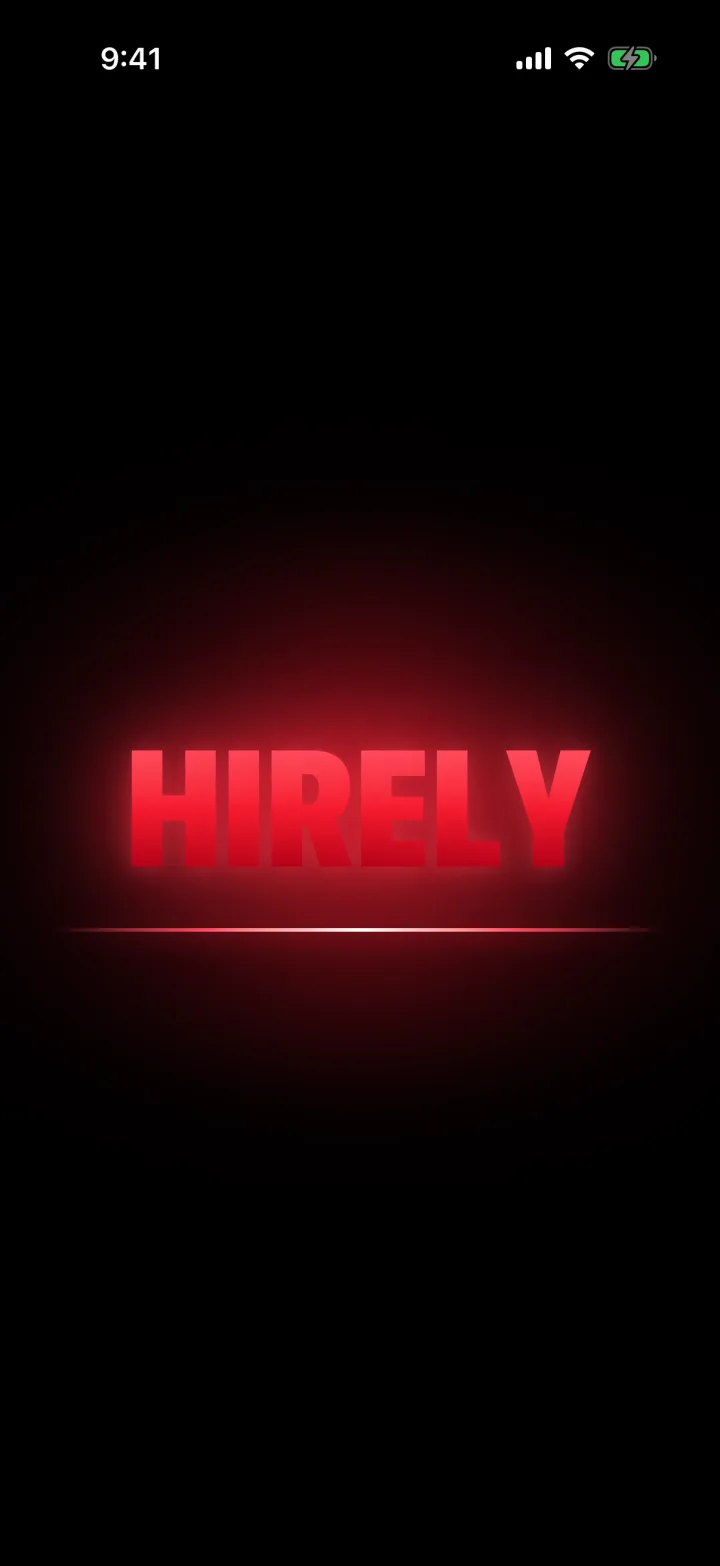
Chapter 01 · Splash

A title card, not a loading screen.

Hirely opens like a studio ident: the wordmark strikes in with a red bloom and a glowing horizon, then hands off to Home. It sets the cinematic tone before a single job appears.

  • withAnimation(.spring)
  • blur + glow layers
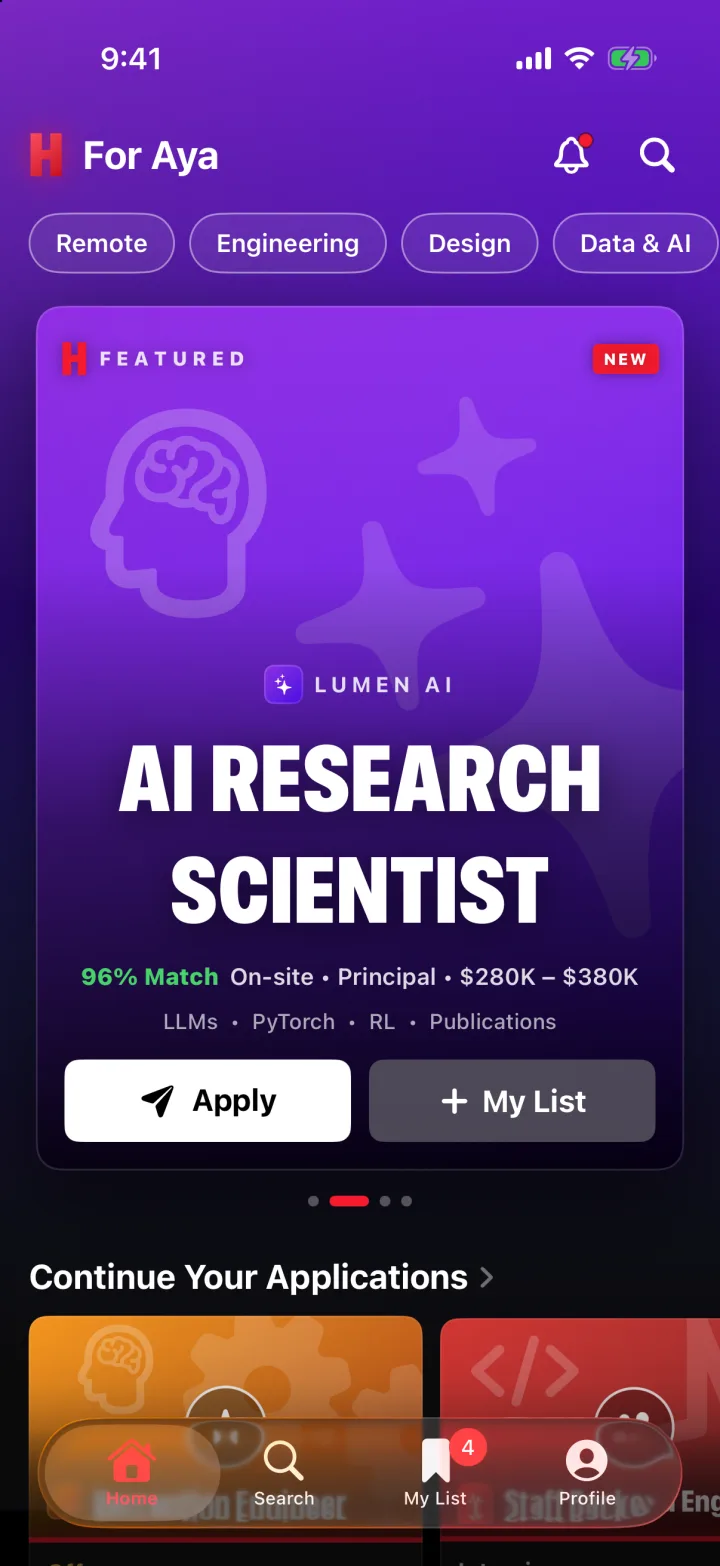
Chapter 02 · Home hero

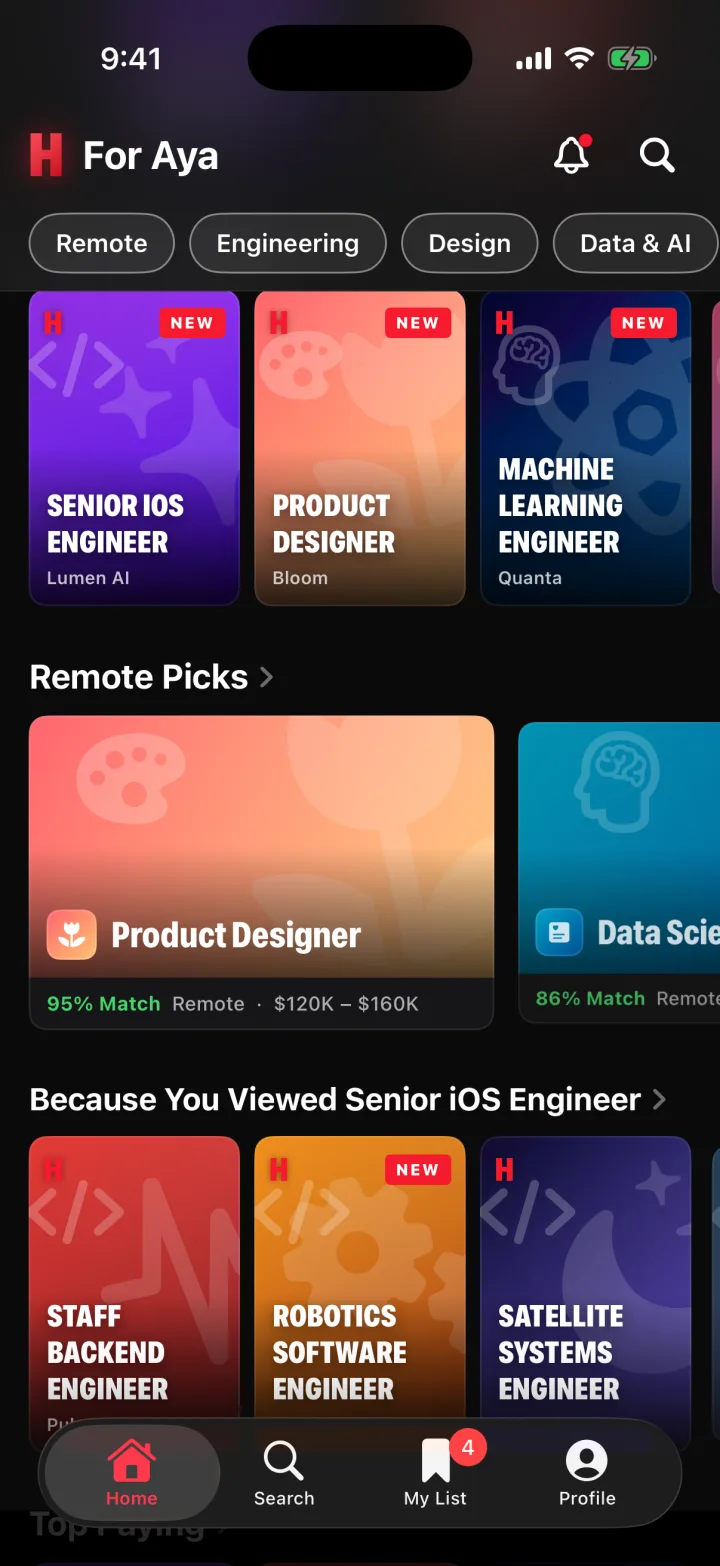
Featured roles, billed like premieres.

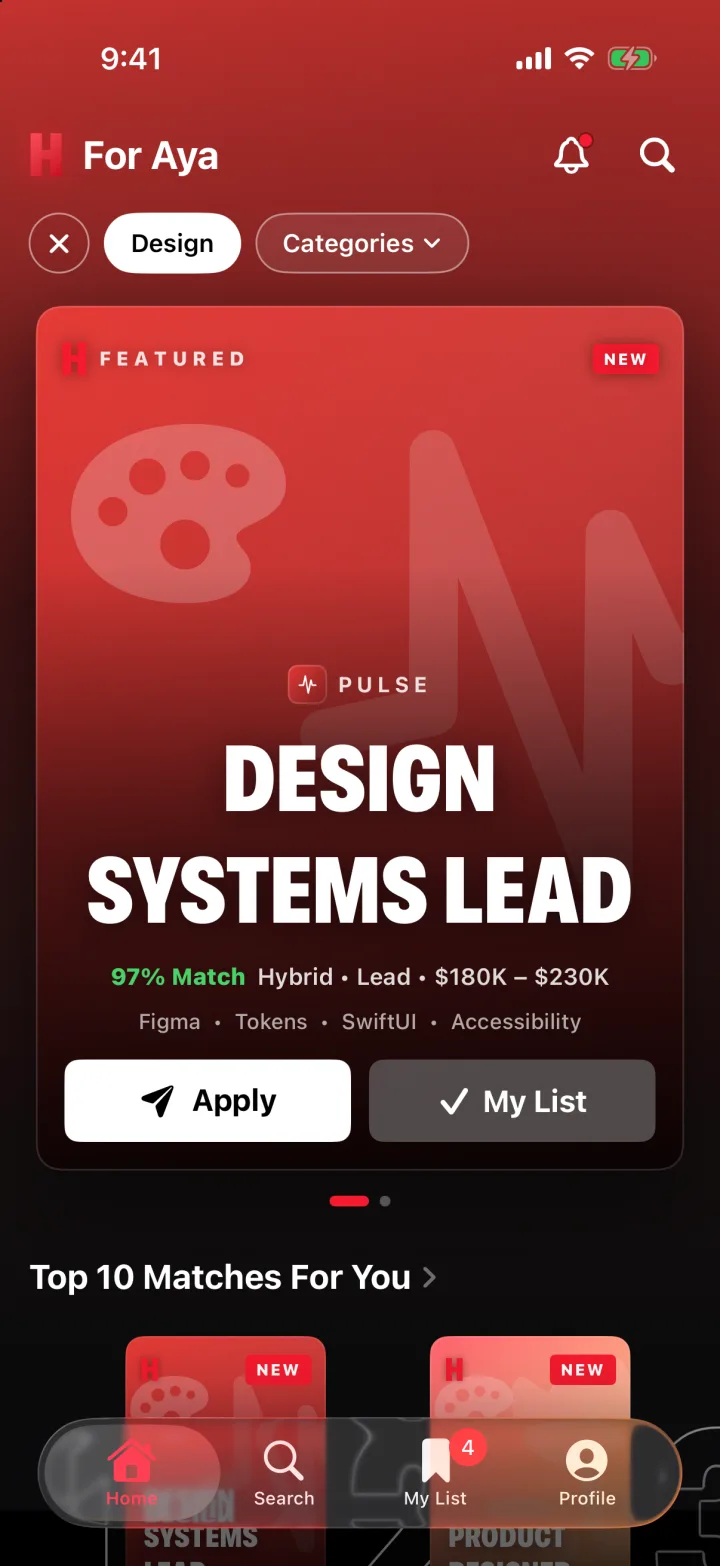
A full-bleed billboard carousel auto-advances through featured jobs, tinting the whole backdrop to each poster and tilting cards in 3D as they slide. Filter pills reshape the feed in place.

  • ScrollPosition
  • scrollTargetBehavior(.viewAligned)
  • rotation3DEffect
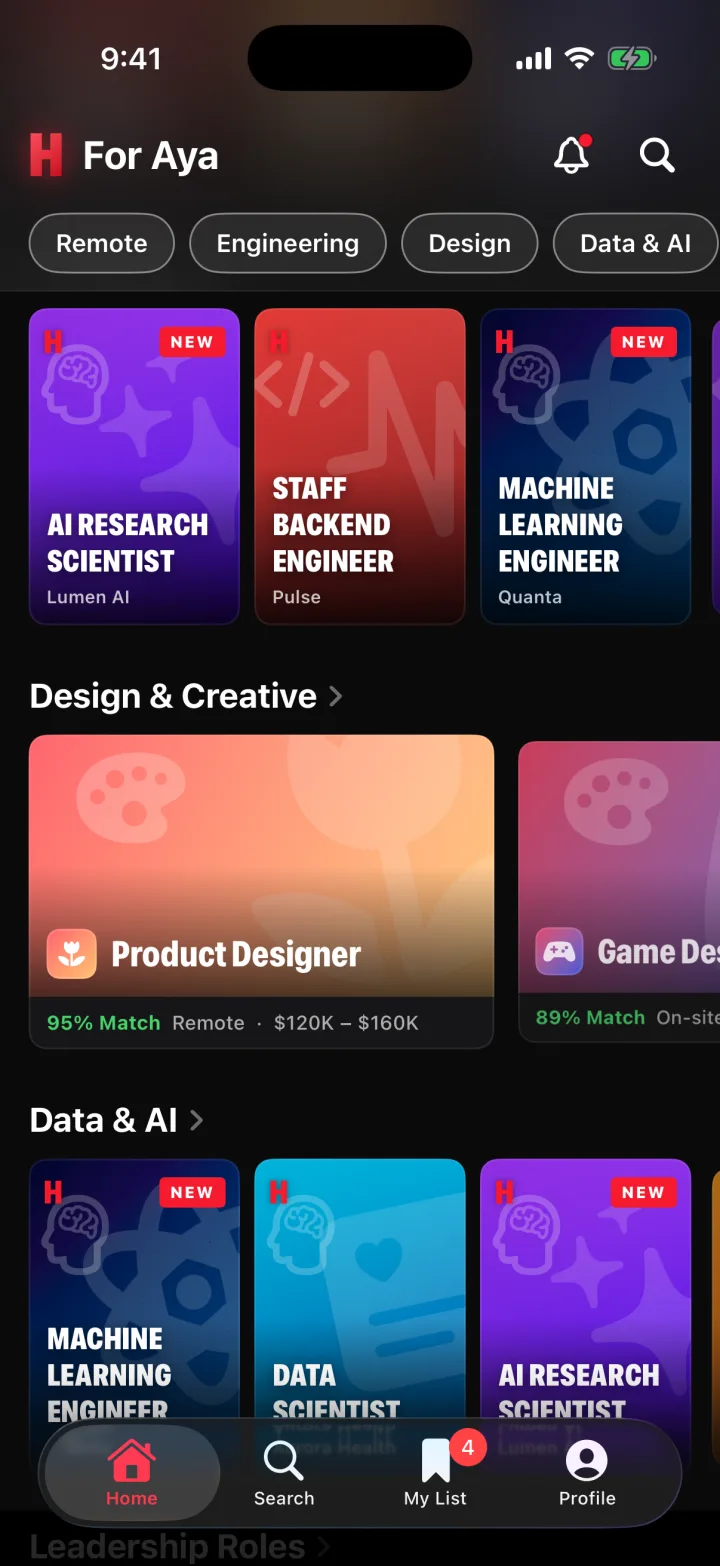
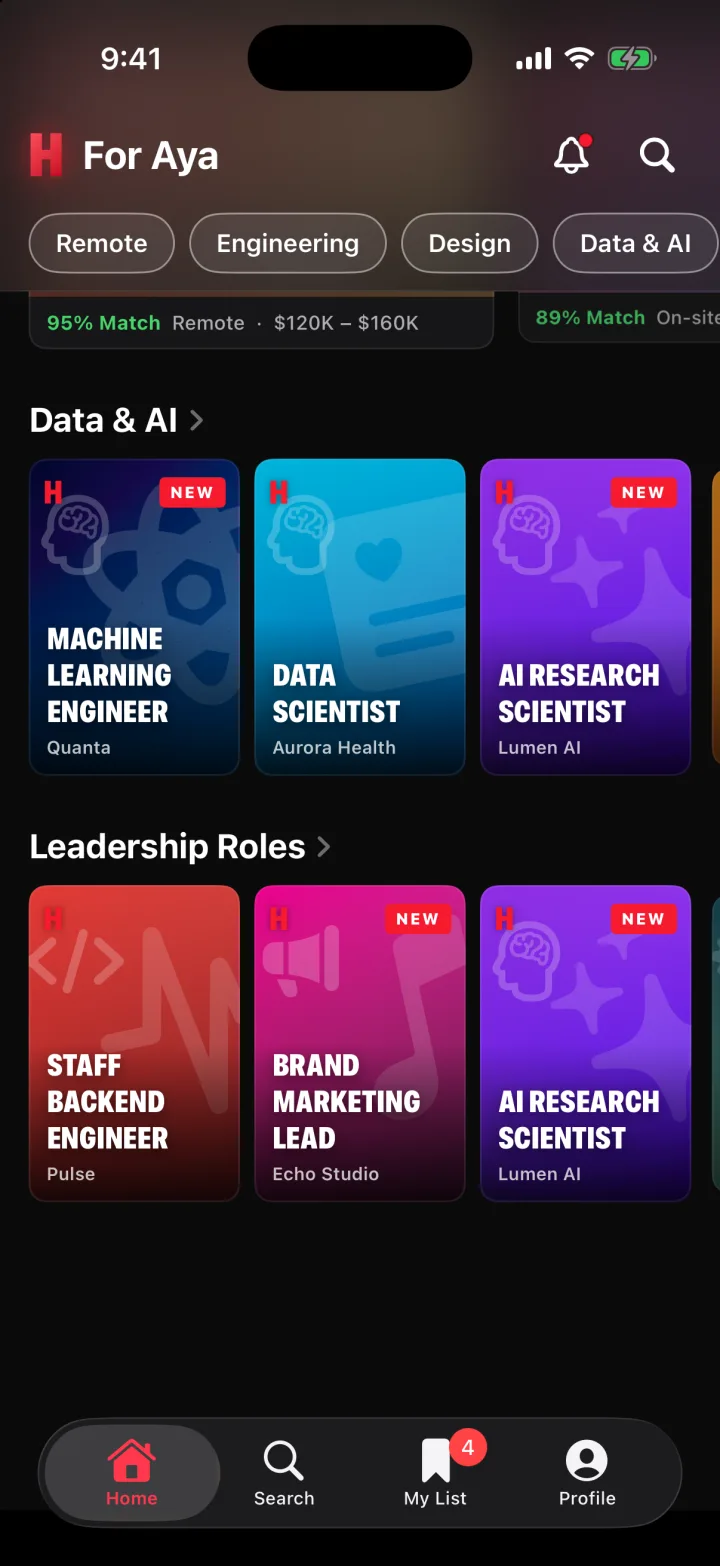
Chapter 03 · Top 10 & rows

Rows you want to scroll.

“Continue your applications” with progress bars, a Top 10 row with giant outlined numerals, then poster and wide carousels by category. Every poster is drawn in code from brand gradients and SF Symbols.

  • scrollTransition
  • LazyHStack
  • zero image assets
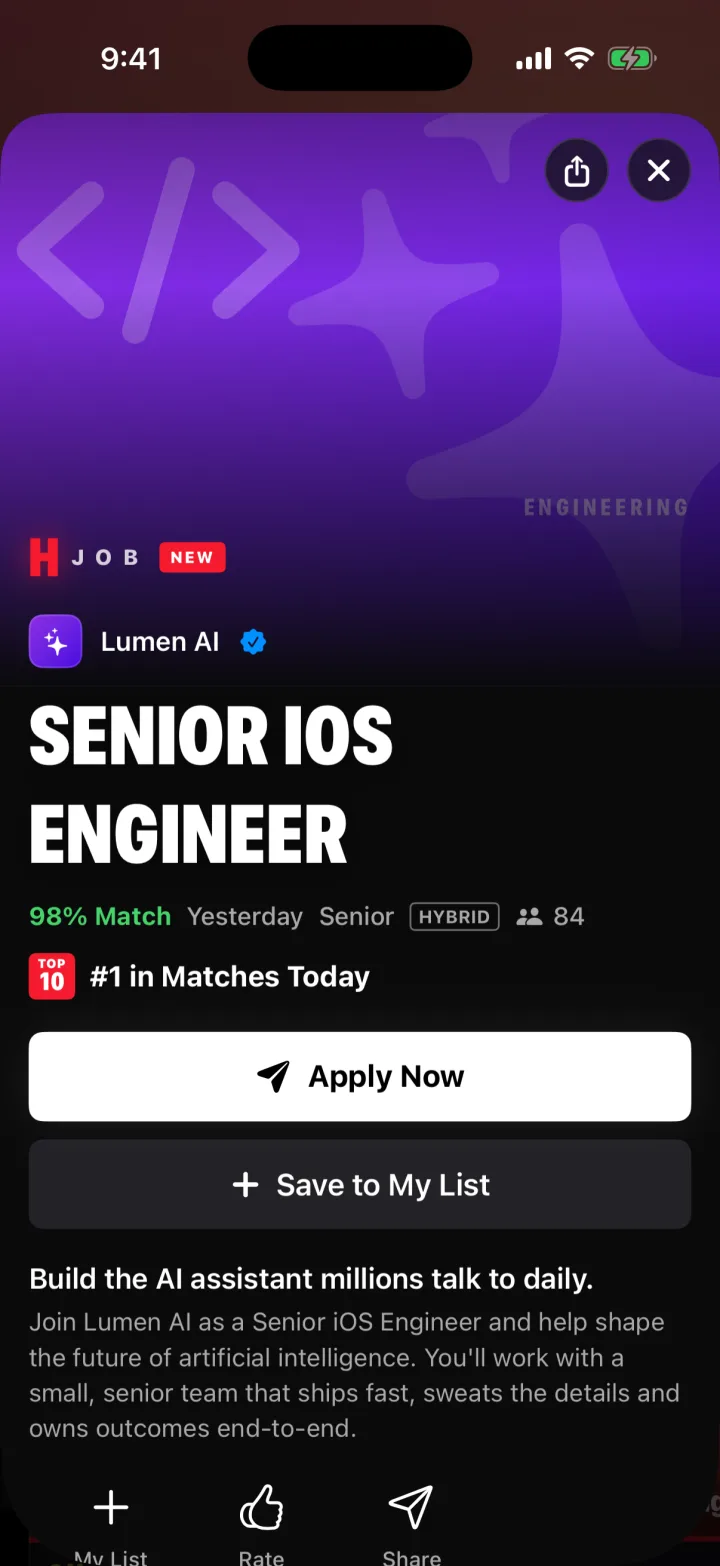
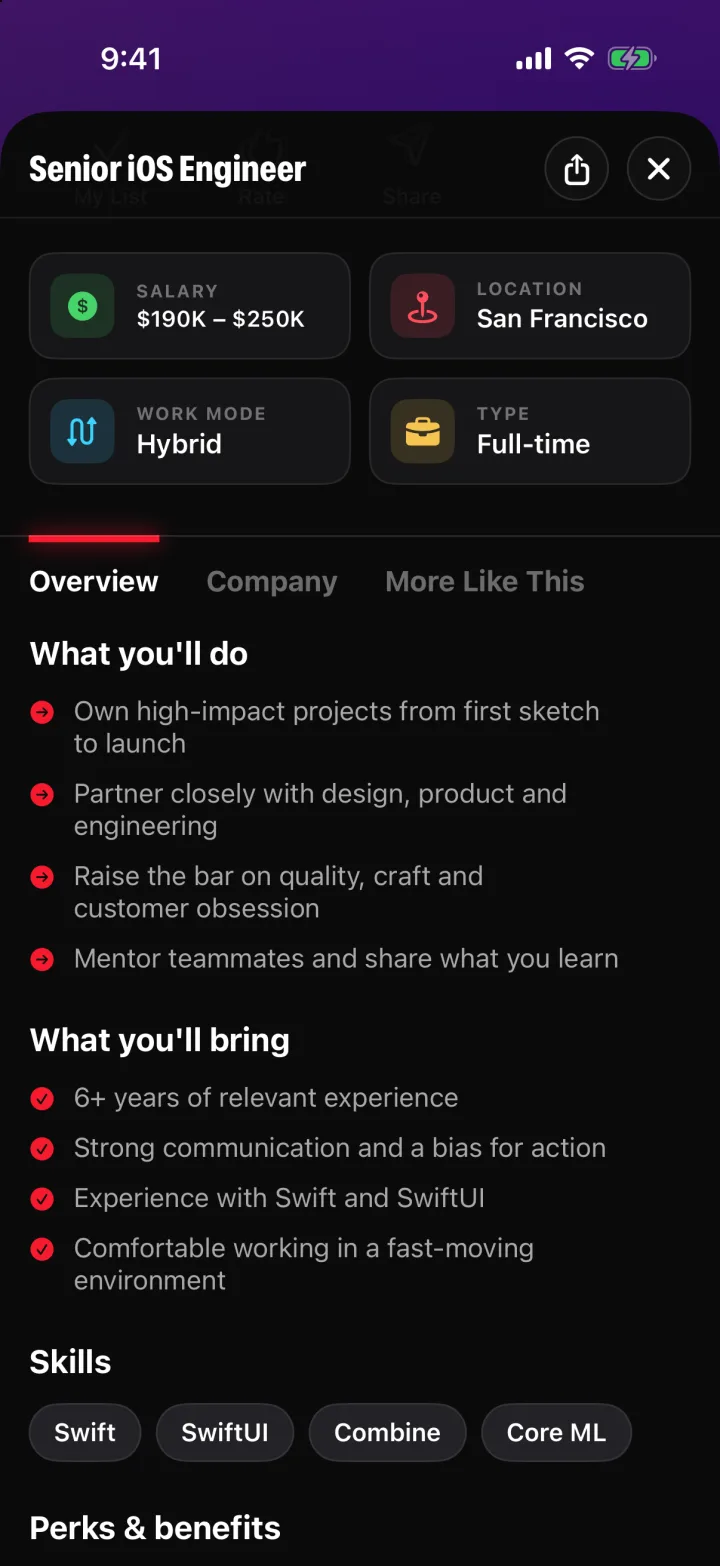
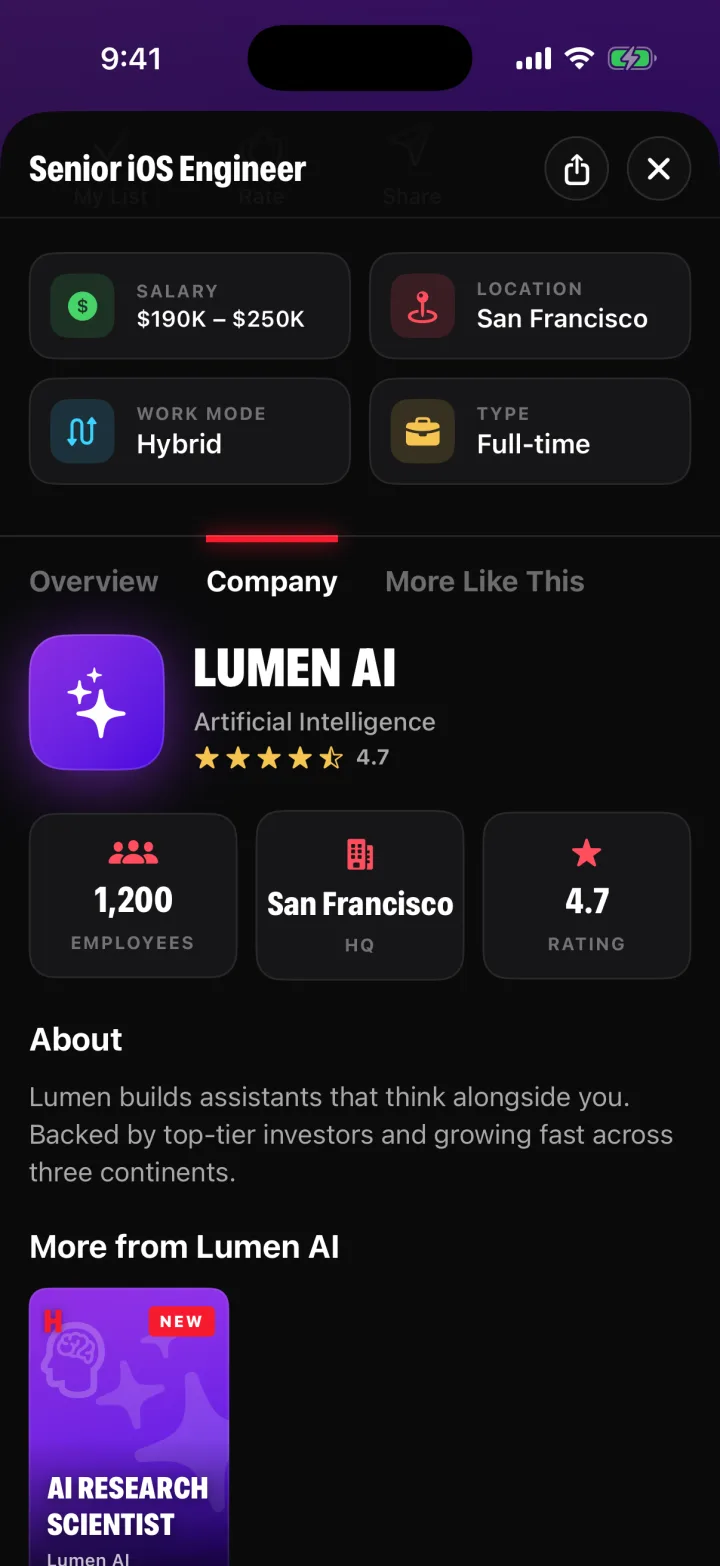
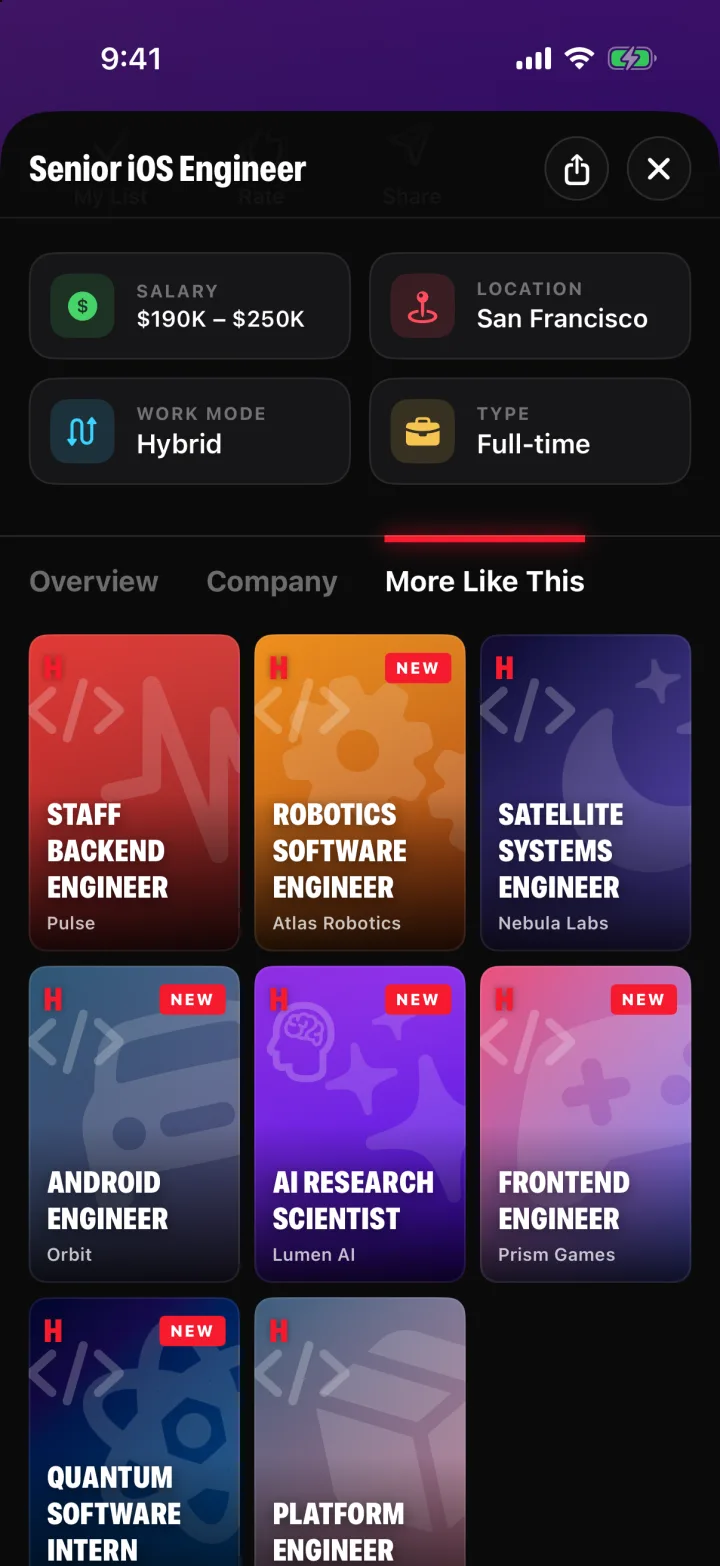
Chapter 04 · Job detail

A detail sheet with real depth.

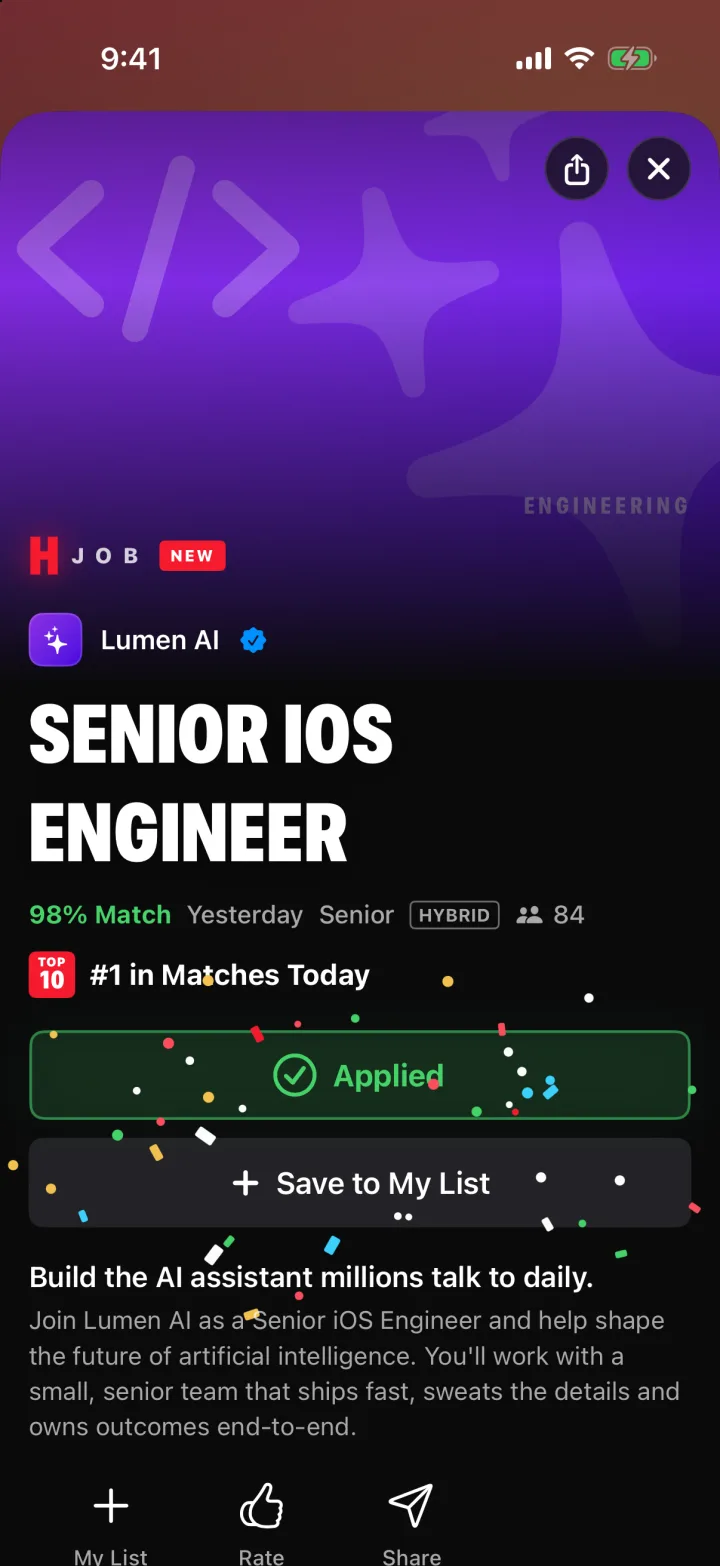
The hero parallaxes under your thumb while the match score, salary and work mode stay legible. Overview, Company and More Like This tabs slide an animated indicator between them.

  • onScrollGeometryChange
  • matchedGeometryEffect
Chapter 05 · Apply

Apply, then celebrate.

The Apply button morphs into a spinner, resolves to “Applied ✓”, fires a success haptic and throws confetti. A tiny moment that makes a stressful task feel rewarding.

  • sensoryFeedback(.success)
  • symbolEffect
  • contentTransition
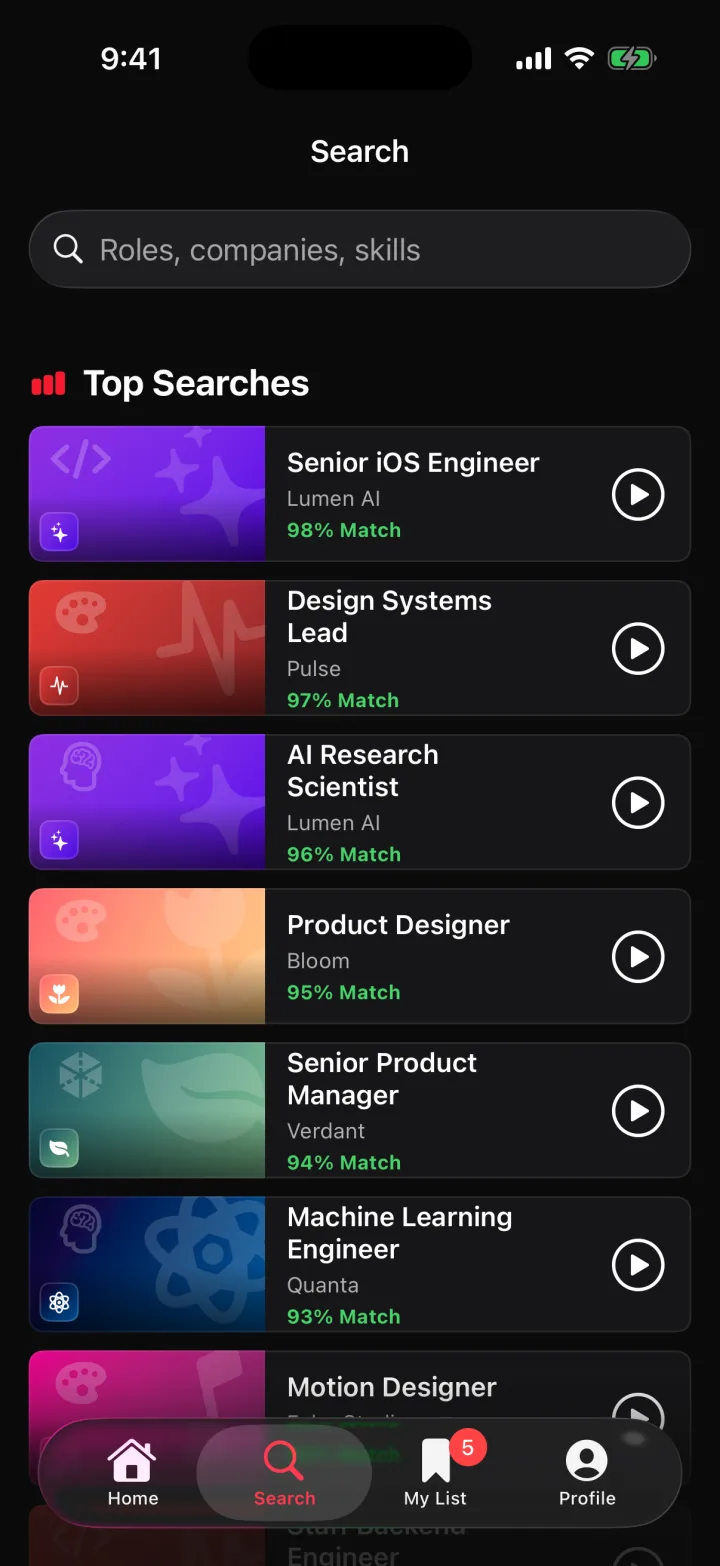
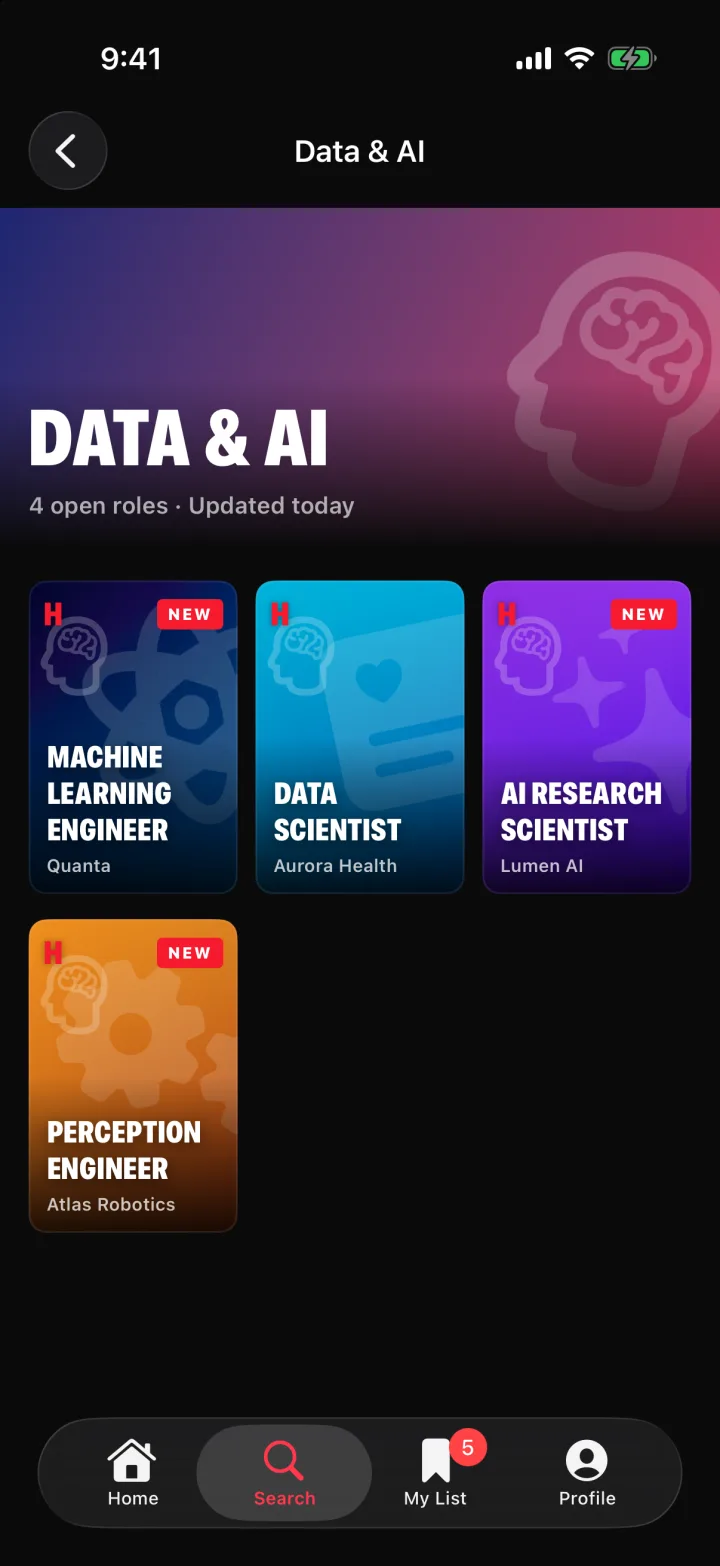
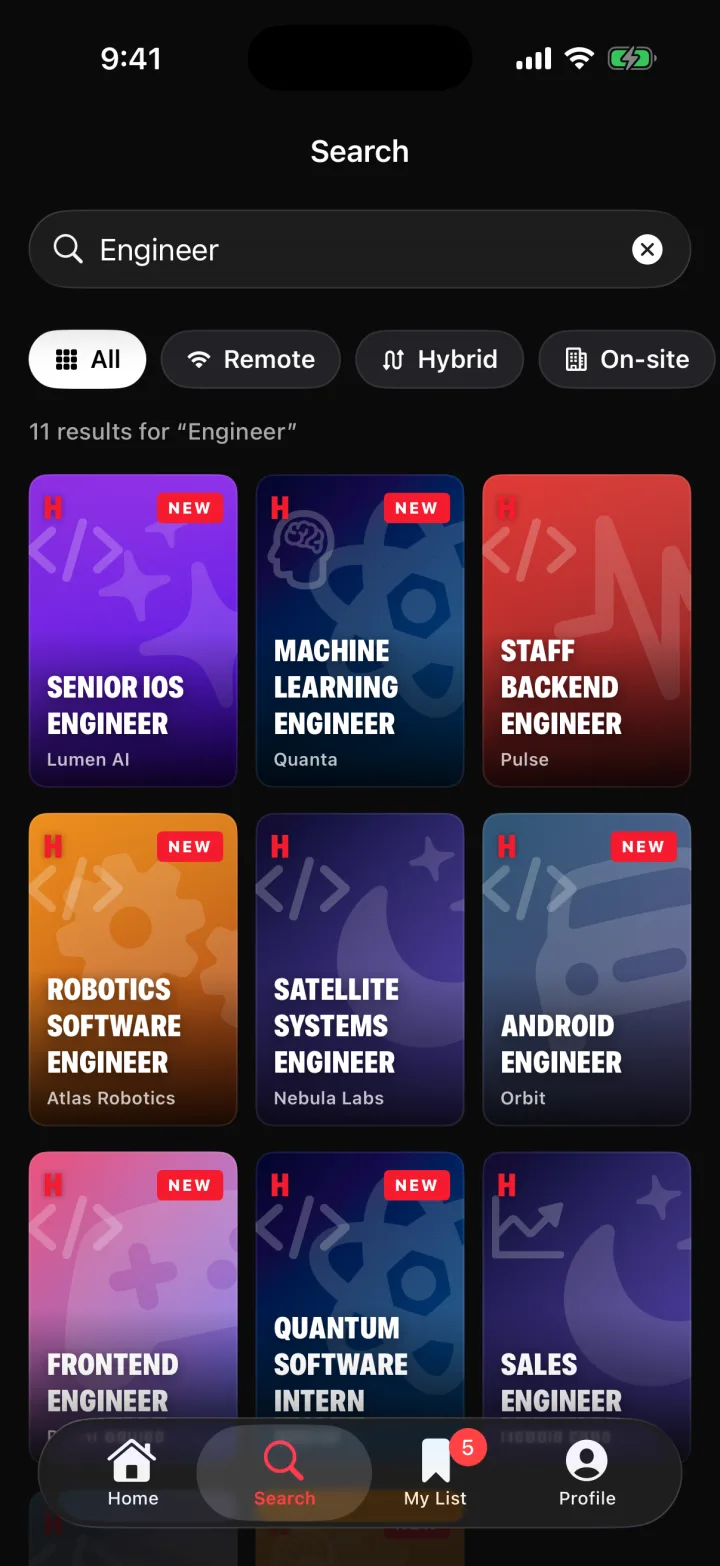
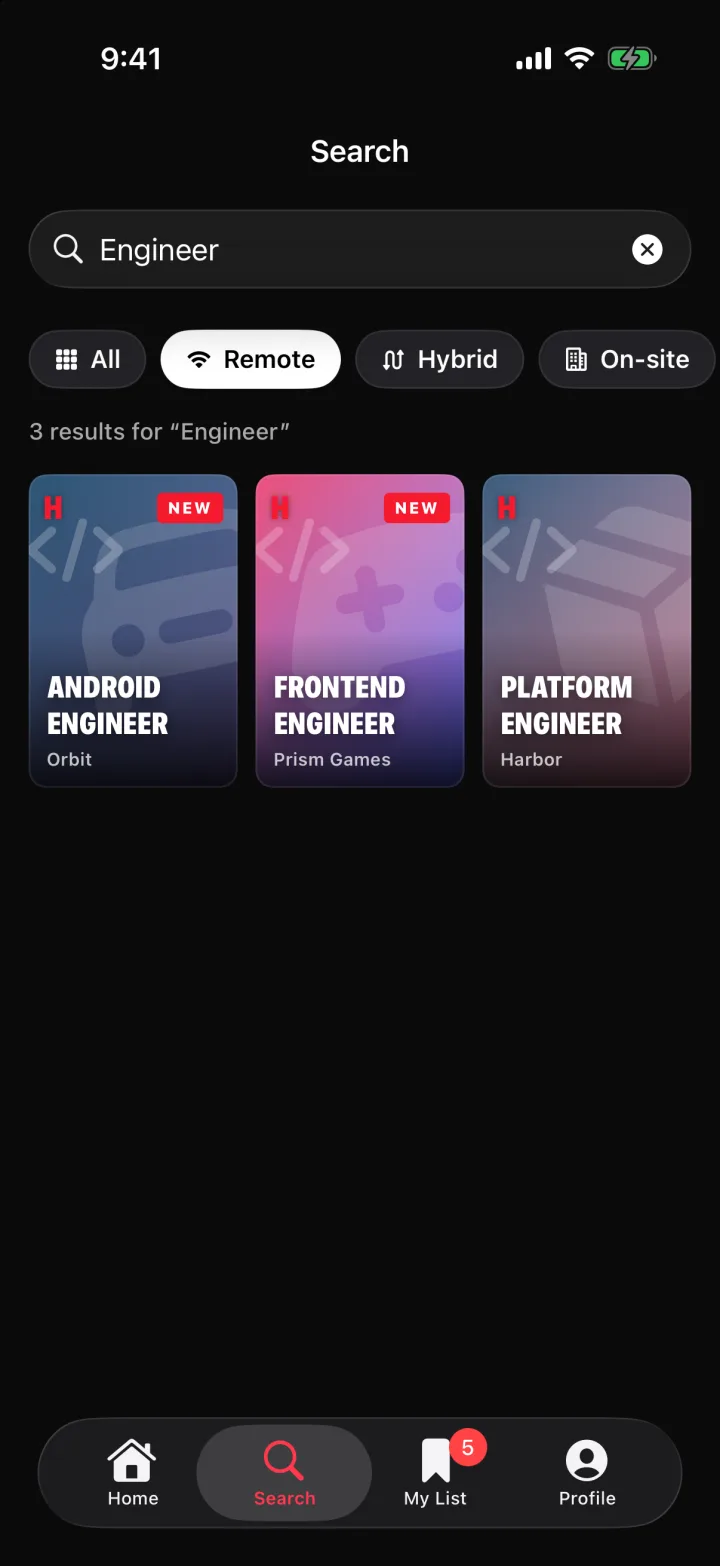
Chapter 06 · Search

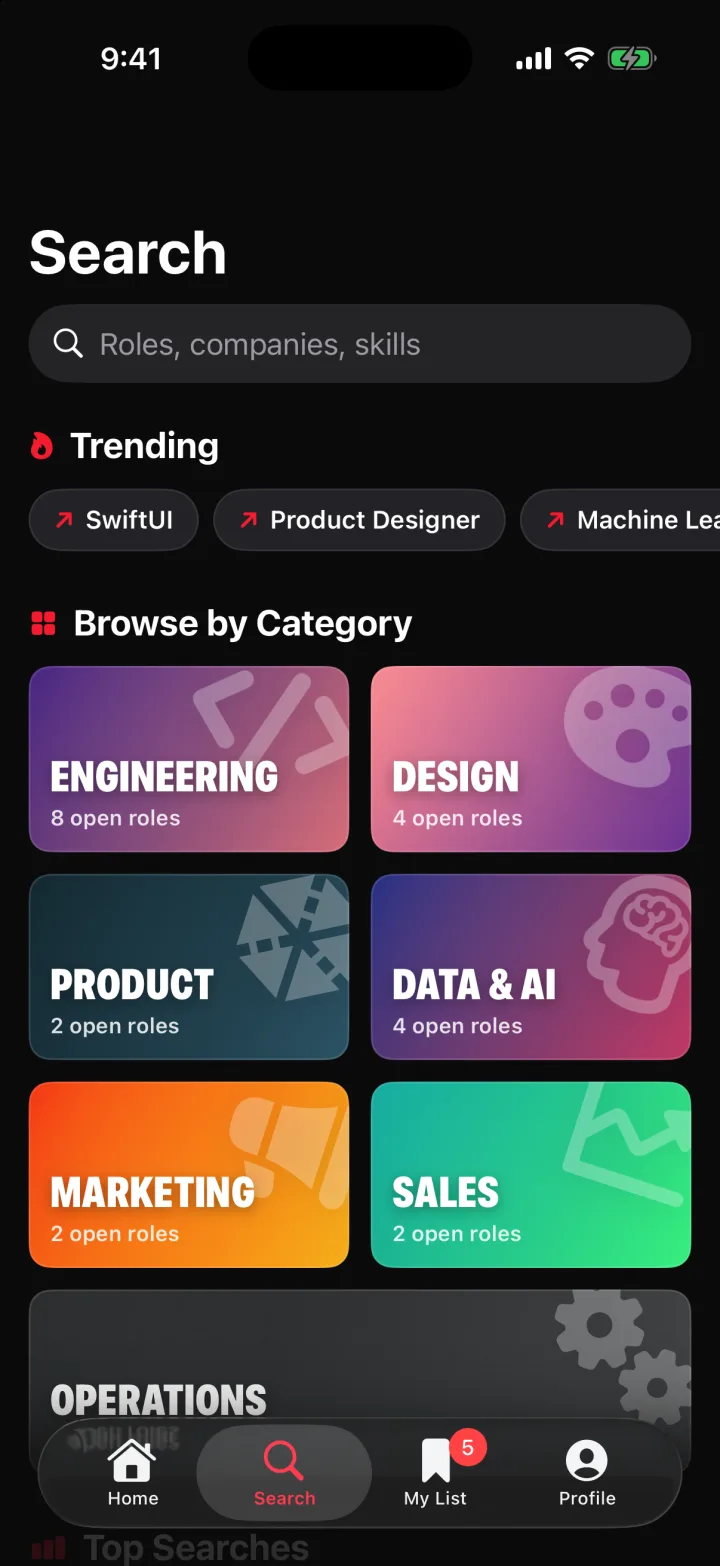
Search that feels like browsing.

Trending chips and category tiles push into their own screens; typing switches to live results you can narrow to Remote, Hybrid or On-site without losing your place.

  • @Observable
  • NavigationStack
  • live filtering
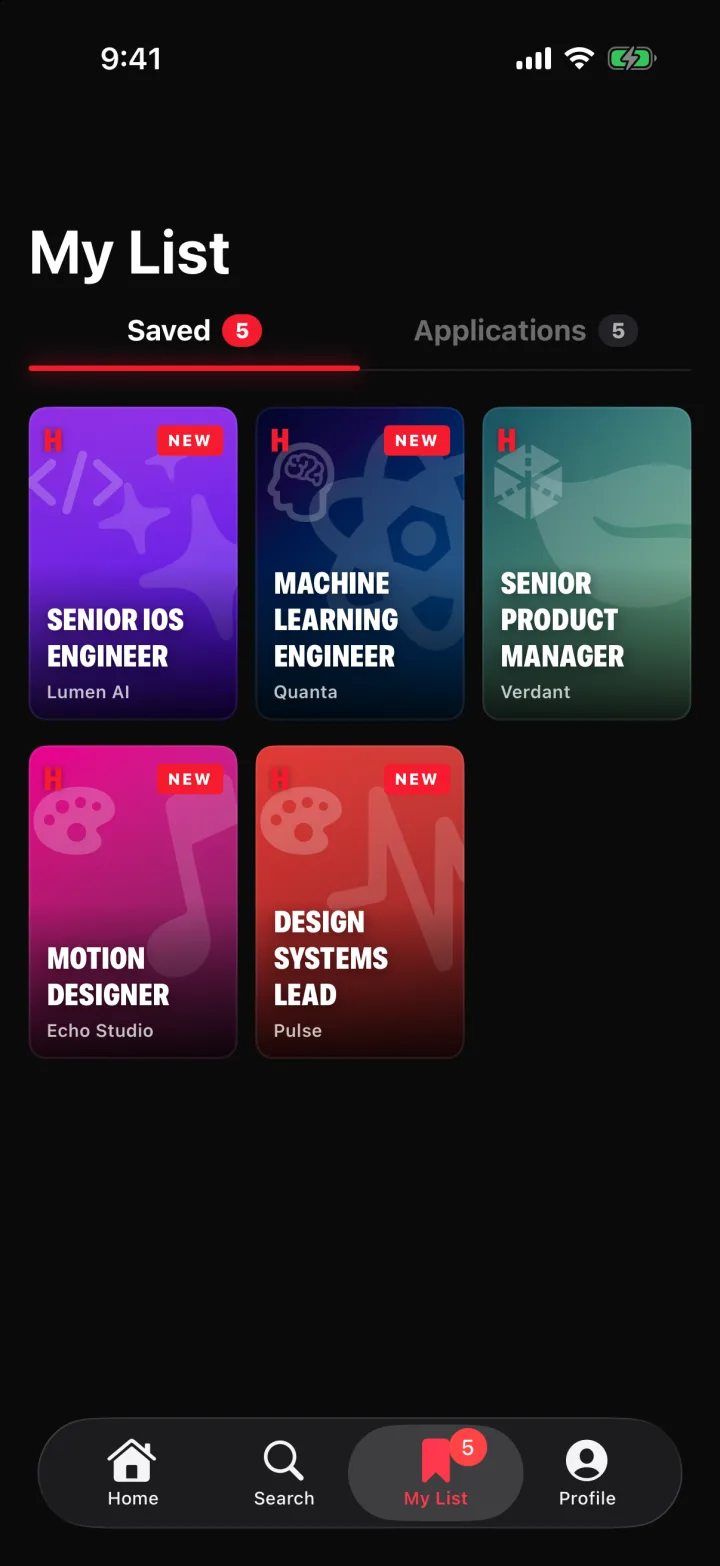
Chapter 07 · My List

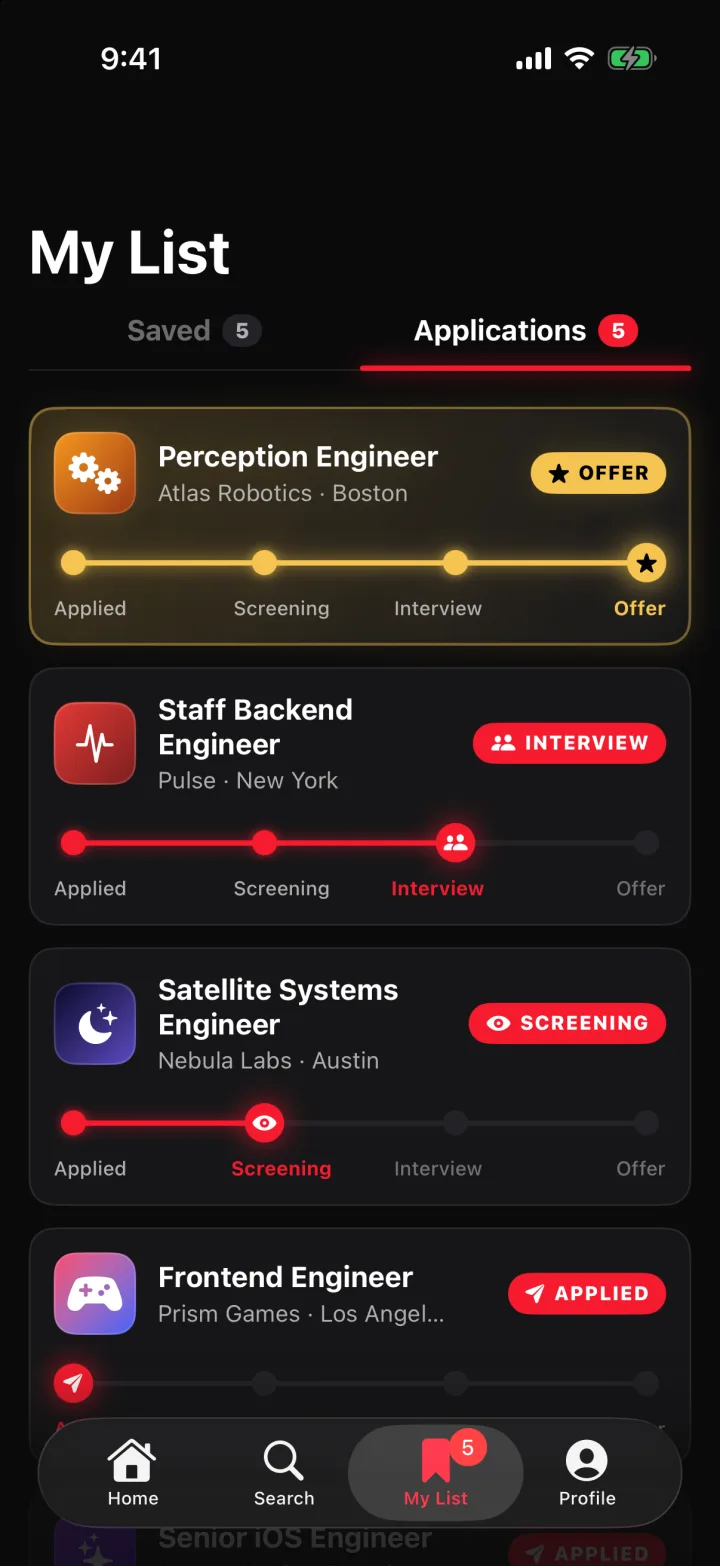
Your search, told as a story.

Saved roles live as posters; applications become a tracker that moves from Applied → Screening → Interview → Offer, with each stage colour-coded at a glance.

  • iOS 18 Tab API
  • .badge(count)
  • Observation
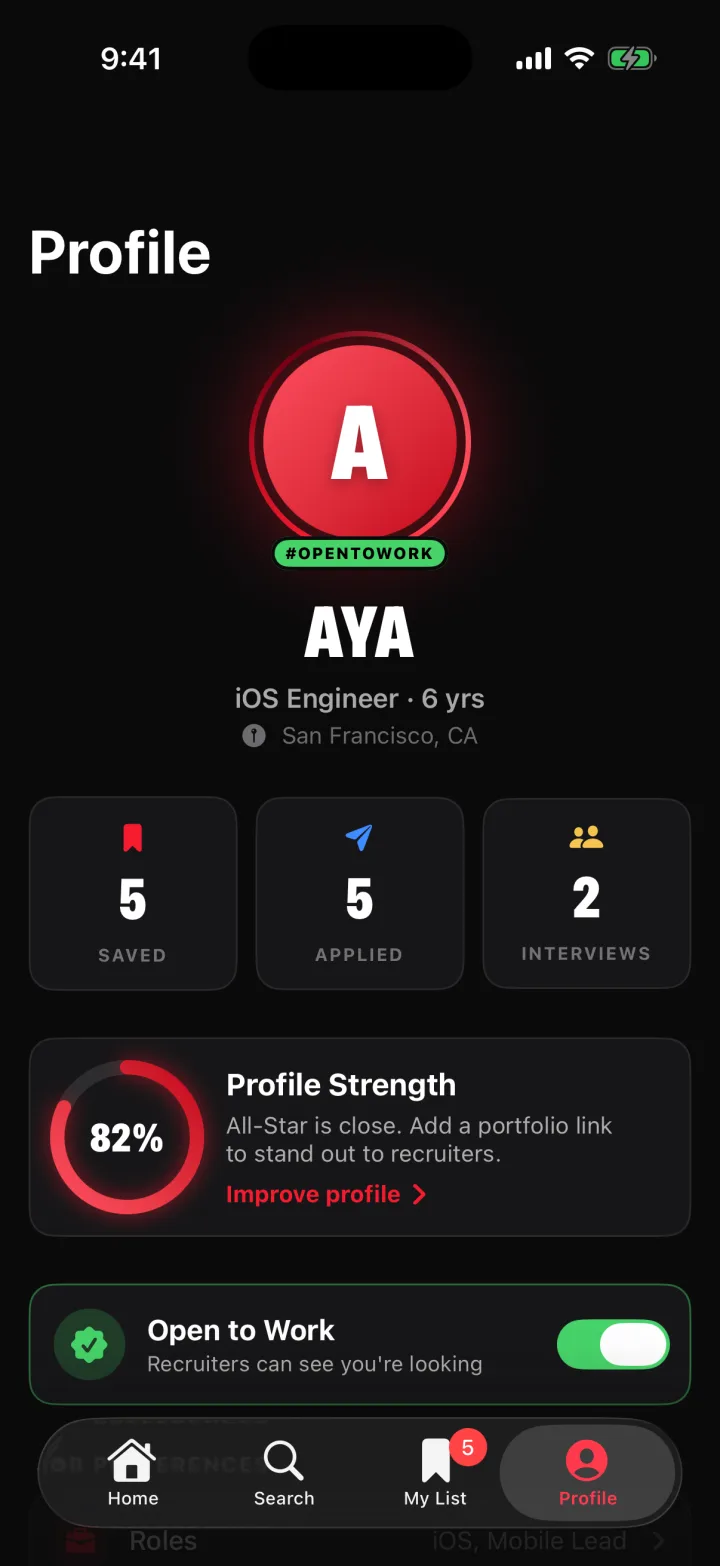
Chapter 08 · Profile

A profile that nudges.

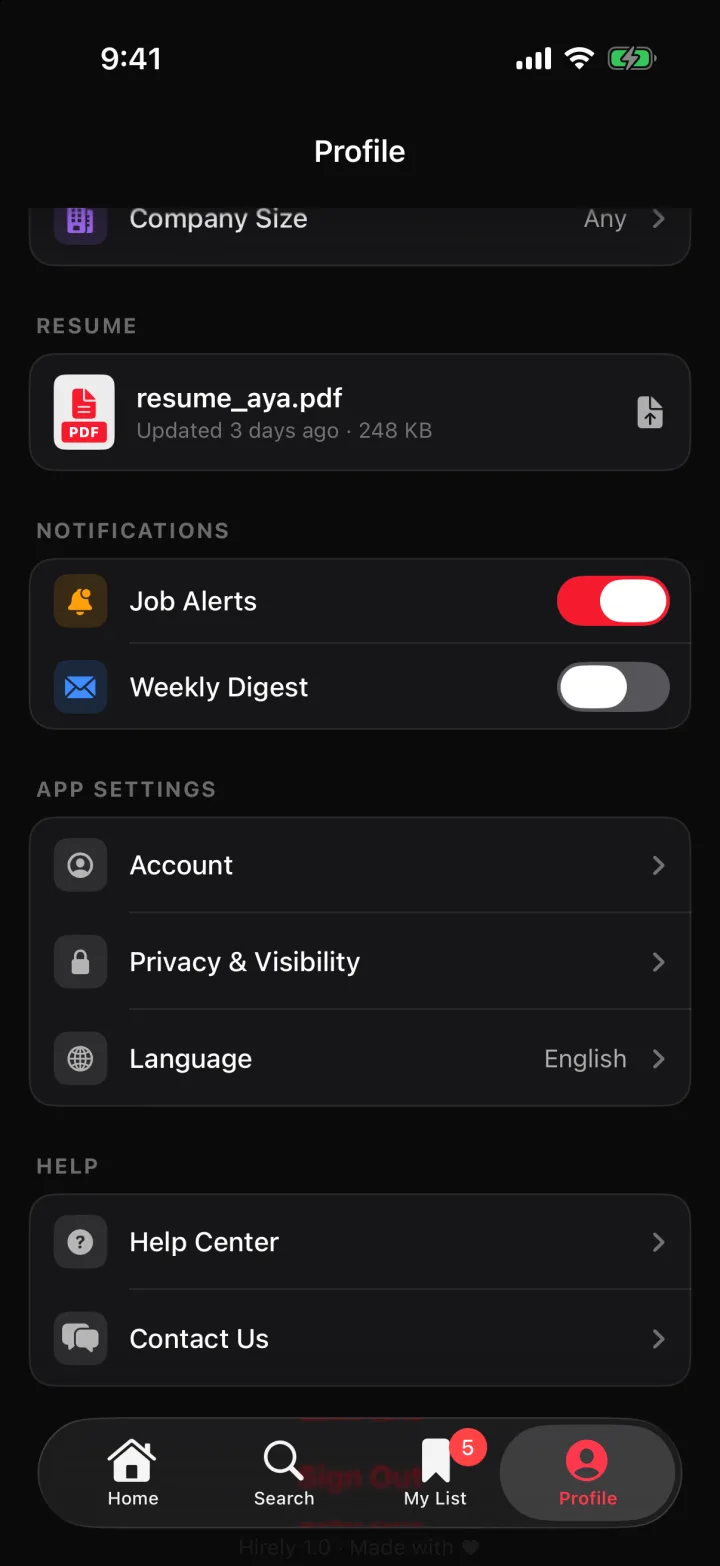
A profile-strength ring, saved / applied / interview stats and an Open to Work toggle, backed by a full settings stack with notifications and résumé management.

  • Circle().trim
  • SF Symbols effects
  • Toggle styles
Under the hood

Built the native way.

Modern SwiftUI end to end, with no third-party UI libraries. All data is static and mocked so the craft stays front and centre.

State

One observable store

A single @Observable JobStore owns jobs, saved roles and applications, injected once through .environment, so every tab reacts without view models fighting over state.

JobStore.swift
@Observable
final class JobStore {
    var jobs: [Job] = Job.catalog       // 24 roles, 12 companies
    var saved: Set<Job.ID> = []
    var applications: [Application] = []

    func apply(to job: Job) {
        applications.append(.init(job: job, stage: .applied))
    }
}

@main struct HirelyApp: App {
    @State private var store = JobStore()
    var body: some Scene {
        WindowGroup { RootView().environment(store) }
    }
}
Navigation

iOS 18 Tab API

Four tabs declared with the new Tab type, with a live badge on My List.

RootView.swift
TabView(selection: $tab) {
  Tab("Home",
      systemImage: "house",
      value: .home) { HomeView() }
  // Search · Profile …
  Tab("My List",
      systemImage: "bookmark",
      value: .list) { MyListView() }
  .badge(store.saved.count)
}
Scroll

A billboard with physics

The hero carousel snaps view-by-view, tracks its page with ScrollPosition and tilts neighbours in 3D through scrollTransition.

HeroCarousel.swift
ScrollView(.horizontal) {
    LazyHStack(spacing: 0) {
        ForEach(featured) { job in
            HeroCard(job: job)
                .scrollTransition { view, phase in
                    view.rotation3DEffect(
                        .degrees(phase.value * -12),
                        axis: (0, 1, 0))
                }
        }
    }
    .scrollTargetLayout()
}
.scrollTargetBehavior(.viewAligned)
.scrollPosition($position)
Feedback

An apply button that morphs

Idle → loading → applied, with a success haptic and a confetti overlay keyed off the same state.

ApplyButton.swift
Button(action: apply) {
    switch state {
    case .idle:    Label("Apply", systemImage: "paperplane")
    case .loading: ProgressView()
    case .applied: Label("Applied", systemImage: "checkmark")
    }
}
.contentTransition(.symbolEffect(.replace))
.sensoryFeedback(.success, trigger: state == .applied)
.overlay { if state == .applied { ConfettiBurst() } }
Art direction

Zero image assets

Every poster is a brand gradient plus an SF Symbol, generated per company.

PosterArt.swift
job.brand.gradient
  .overlay(alignment: .topTrailing) {
    Image(systemName: job.symbol)
      .font(.system(size: 120,
                    weight: .black))
      .opacity(0.18)
  }
Parallax

Geometry, observed

The detail hero reads its scroll offset directly, with no GeometryReader hacks.

JobDetail.swift
.onScrollGeometryChange(
    for: CGFloat.self
) { $0.contentOffset.y }
  action: { _, y in
    heroOffset = y
}
Project

Reproducible with XcodeGen

The .xcodeproj is generated from a spec file, so there are no merge conflicts in project files.

project.yml
name: Hirely
targets:
  Hirely:
    type: application
    platform: iOS
    deploymentTarget: "18.0"
    sources: [Sources]
Automated showcase capture

Every screen on this page was captured by a script.

This is QA-automation thinking applied to marketing assets. A launch argument puts the app in demo mode, a driver walks the real UI, and OSLog markers tell a recorder exactly when to grab each frame. When the design changes, every asset is regenerated with one command.

  1. 01-demoMode launch argument
  2. 02DemoDriver walks every screen
  3. 03OSLog emits SHOT markers
  4. 04simctl records and snaps on cue

22 screens + a 1:22 walkthrough, zero hand-edited frames

DemoMode.swift
import OSLog

let demo = Logger(subsystem: "com.aya.hirely", category: "demo")

if CommandLine.arguments.contains("-demoMode") {
    Task { await DemoDriver(store: store).run() }
}

// DemoDriver drives the real UI, then marks the frame
await show(.jobDetail(featured[0]))
demo.notice("SHOT 08-detail-hero")
capture.sh
xcrun simctl io booted recordVideo demo.mov &
xcrun simctl launch --console booted com.aya.hirely -demoMode |
while read line; do              # every SHOT marker = one frame
  [[ $line == *SHOT* ]] || continue
  xcrun simctl io booted screenshot "${line##* }.png"
done
Full walkthrough

1:22 of Hirely, unedited.

Every tab, sheet and transition, recorded straight from the iOS simulator by the automated demo driver.

0:00 / 1:22

Muted · 1:22 · 590×1280 simulator capture